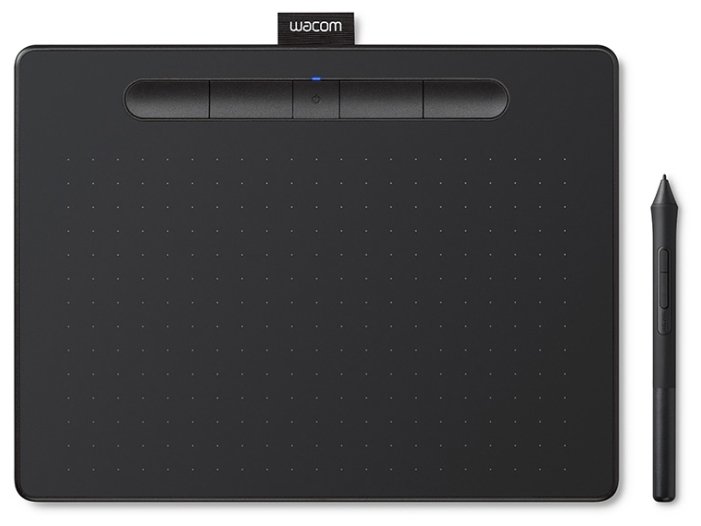

Отзывы о Дигитайзер Wacom CTL-472-N
|
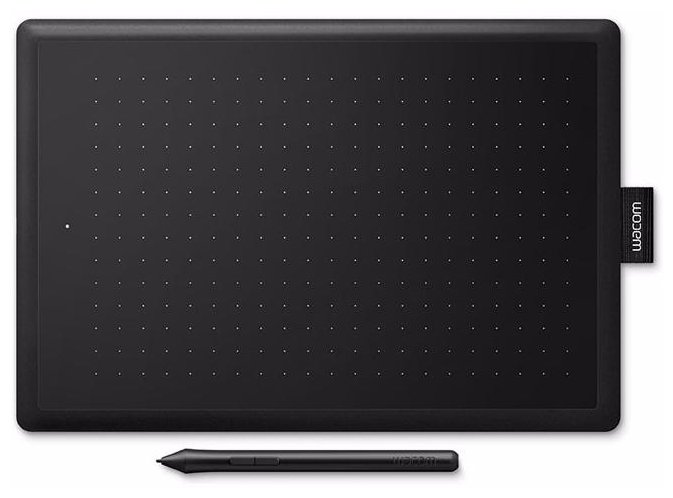
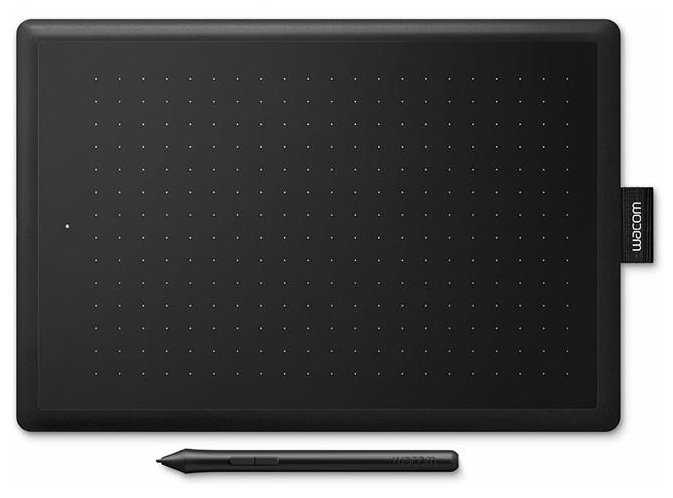
Графический планшет WACOM One Small (CTL-472-N) EU черный/красный | Яндекс Маркет | 5 699 ₽ | Посмотреть |
|
Графический планшет WACOM One Small (CTL-472-N) EU черный/красный | Яндекс Маркет | 5 699 ₽ | Посмотреть |
|
Графический интерактивный перьевой монитор/планшет Wacom One 13 DTC133 | Яндекс Маркет | 31 418 ₽ | Посмотреть |
|
Графический планшет WACOM CTL-672-N | Яндекс Маркет | 31 997 ₽ | Посмотреть |
441 отзывов пользователей o WACOM CTL-472-N
Пользовались
WACOM CTL-472-N?
Поделитесь своим опытом и помогите другим сделать правильный выбор

КиберНаблюдатель-4KZIB
29.12.2018
Оценка пользователя
Великолепно
- + Большая область работы Отличная цена Хорошее качество материалов
- - Перо довольно тонкое и нет ластика
Астероид-0VFFP
03.05.2019
Оценка пользователя
Великолепно
- + Простота
- - не обнаружил
Эксопилот-8USDB
12.11.2018
Оценка пользователя
Великолепно
- +
Купил дочке, красивый, настраивается на раз, два (проблем с установкой дров на Win 10 нет) Дочка в восторге, в что ещё нужно?
- -
Тонкий, короткий, ломкий кабель (заменил на нормальный+ USB удлинитель).
Качественный, недорогой продукт от знаменитого бренда. Дорогие сменные наконечники, ну да может быть, 4 шт идут в комплекте, 5 шт отдельно за 999 руб. Хватит их надолго
Гелиос-5QOUG
08.04.2019
Оценка пользователя
Великолепно
Вектрон-0CLFU
02.02.2019
Оценка пользователя
Великолепно
- + Дешево сердито.
- - Не выявлено
Оказалось для меня на планшете рисовать получается лучше чем на бумаге, хотя может потому что рисовать толком не умею.
Зета-Орион-9CVBV
16.03.2019
Оценка пользователя
Великолепно
- + Цена
Удобный размер
Приятная тактильно поверхность
Высокая точность - - Пока не выявлено
Астероид-3AFXQ
12.11.2018
Оценка пользователя
Ужасно
- +
Компактный
Приятная рабочая поверхность
- -
Mac отказывается его видеть, проблема с драйверами. В оф.группе в вк пишут, что с windows такая же проблема. Оказалось, это распространенная проблема с планшетами Wacom.
Интеллектор-1MVOZ
08.01.2018
Оценка пользователя
Плохо
- +
Планшет не занимает много места на столе, провод вставляется крепко и сам по себе не отсоединится. Перо маленькое и лёгкое, выполнено в одном цвете. Брал для игры в osu, в этом плане он хорошо подходит, да и рисовать на нём удобно.
- -
Чтобы поставить драйвера мне потребовалось убить 3-4 часа. Скачивал драйвера с официального сайта. Драйвера не устанавливались т.к. не проходили проверку цифровой подписи. Отключить проверку цифровой подписи получилось только при загрузке пк. При включении жал на кнопку F8 и в меню выбирал (отключение проверки цифровой подписи), драйвера установились. Такую операцию приходится делать при каждом включении пк. т.к. после каждого нового включения драйвера слетают.
Планшет был бы идеальным недорогим вариантом для меня, но эта проблема всё испортила
Аргонавт-7LJAF
04.09.2018
Оценка пользователя
Хорошо
- +
Шикарное "перо", как и у всех Wacom
- -
Размер рабочей зоны слишком маленький для рисования
Новичкам советую раскошелиться либо на Wacom One Medium, либо на китайские аналоги ещё более крупного размера рабочей зоны. Чем больше, тем лучше
НаноПилигрим-0OCRW
22.07.2018
Оценка пользователя
Хорошо
- +
Я только перешел от бумаги к планшету, поэтому могу сказать что меня в нем все устраивает, стилус очень удобный, не тормозит, в обращении простой, короче огонь. Для тех кто только начинает рисовать советую брать,не пожалеете.
- -
так как я только начал вливаться в эту тему для меня недостатков в нем нет
Странник-7LRMD
24.02.2018
Оценка пользователя
Великолепно
- +
Размер - не маленький, но и не огромный. Новичку вроде меня подойдёт
Цена - Самый доступный из планшетов Wacom на первичном рынке.
Вес - словами не описать, но он ооооочень лёгкий. можно вместе с пером и коробкой удержать 2мя пальцами.
Перо - удобное, немного скользит если долго держать в руках, или они грязные.
Поверхность - не стирается, точки обозначения раб. области чёткие до сих пор.
- -
Кабель - можно было и подлиннее. Так, отличный кабель.
Рекомендую новичкам и людям слабо понимающим в планшетах. Лучший вариант не на один месяц, а может и год.
Гравитон-0LZAO
28.07.2018
Оценка пользователя
Ужасно
- +
Красивенький дизайн, перо без батареек
- -
Просто ужасные драйвера, которые слетают и работают через раз. Слишком лёгкое перо. Переплата за бренд
Прошлая версия этого планшета была лучше, качественнее и приятнее глазу. Не рекомендую к покупке
Квазар-9XSMJ
13.08.2018
Оценка пользователя
Хорошо
- +
1. Красивый дизайн
2. Удобный размер гп
3. Легкое перо
4. Прост в настройке
- -
Мб цена
Если не жалко денег можно взять, но офк есть какой нибудь икс пен и он будет не хуже, а цена существенно меньше
Дроид-3EMVM
30.07.2018
Оценка пользователя
Великолепно
- +
Совместимость с win7
- -
пока нет
Вообще понять не могу откуда растут руки у тех людей кто пишет о плохих драйверах и несовместимости с Win7. Я скачал драйвера(WacomTablet_6.3.30-2) с русскоязычного сайта wacom и всё прекрасно пашет!!!
Плазмонавт-5OQBQ
05.01.2018
Оценка пользователя
Великолепно
- +
Преимущества этого графического планшета является,что при работе,когда рука находится на рабочей зоне,то ничего не мешает,то есть не реагирует,несомненно можно отнести то ,что в наборе идут сменные стержни для пера,легкий вес,который не достает лишнего дискомфорта в переноске,как по мне,то цветовая гамма Wacom One by Wacom Small выглядит очень органично,даже при частом использовании драйвера не слетают.
- -
Недостатков нет.
Относительно не понимаю,почему же предыдущие комментаторы указывают,что не имеется ластика,он как раз есть,но при установке драйверов его надо настроить,так чтобы было удобно.
Фотон-2TOOU
18.06.2018
Оценка пользователя
Великолепно
- +
Если ты любишь играть в осу то этот планшет тебе подойдёт, и для рисование норм.
Перо без батареек.
Занимает мало место
- -
Драйвера не очень.
Чтобы было лучше играть в осу можно поставить сверху коврик для мыши, ещё импут лагов не замечал
Капеллан-9QOGI
20.08.2018
Оценка пользователя
Хорошо
- +
цвет, дизайн
- -
короткий кабель, перо сделано из дешевого пластика, выглядит не очень
с 10 виндой все нормально работает )
КиберНаблюдатель-3QZYV
18.03.2018
Оценка пользователя
Хорошо
- + Цена, размер, простота установки (не требуются драйверы), всё укомплектовано
- - Я ожидала, что линии будут такими же ровными и лёгкими, как при рисовании карандашом на бумаге. Но это оказалось не совсем так. Местами контакт пропадает и на линиях появляются изломы. Ближе к краям планшета стилус уже не рисует. При небольшом усилении нажима стилус оставляет мелкие царапины, будьте осторожны.
ТехноНаблюдатель-2BTLX
03.06.2018
Оценка пользователя
Плохо
- +
Маленький, лёгкое перо
- -
Никак не работает на Windows 7. Дрова не видят планшет, однако он подключен (проверял все порты)
Советую купить, если Windows 8 и выше, а вообще, лучше с алиэкспресса заказать xp-pen g640 за 2500р, он подойдёт и для рисования, и для осу
Кварковец-1EHOF
12.06.2018
Оценка пользователя
Плохо
- +
Легкий
Нормальный отклик
Перо не требует батареек
- -
Ужасные драйвера которые работают через раз
Быстро стирается
Покупал за 4400, через неделю он стал стоить 3300. Мой видимо позолочен был.
ОмниКод-0DMFU
07.03.2018
Оценка пользователя
Хорошо
- +
Удобный, не занимает много места. В комплекте идут перья, инструкция о том, как их менять и где брать дрова.
- -
Не поддерживает windows 7. Дрова вы поставите, но планшет с ними просто не будет работать. Очень неприятно, что и в характеристике указано будто он работает на семерке, и на сайте wacom, а на деле - нет. Поможет только обновиться до десятки или поставить восьмерку.
НаноПилигрим-5YGNH
13.02.2018
Оценка пользователя
Великолепно
- +
Отличный планшет за свою цену, хорошая чувствительность, удобное перо. Выглядит качественно.
- -
Довольно хрупкий провод, погнулся сразу, но работает. Если уж сломается, то можно заменить его обычной зарядкой от любого андроид смартфона. Поверхность планшета не плохо так трется об перо, в более дорогих версиях этого нет.
В целом отличный девайс, недостатки незначительные, рекомендую.
Аргонавт-9SGTP
30.06.2018
Оценка пользователя
Хорошо
- +
*цена
*малый размер
*легкость эксплуатации
- -
*старый дизайн был лучше (личное мнение)
НоваГость-2PRIG
09.01.2018
Оценка пользователя
Великолепно
- +
Довольно лёгкий, приятно лежит в руке. Очень нравится внешний вид. Перо также имеет небольшой вес. Вполне подходит для игры в OSU!. Имеются запасные стержни, что конечно радует.
- -
Если использовать его в малой области, за месяц игры стирается защитный слой планшета. Решение - покупка защитной плёнки.
В будущем думаю увеличить рабочую(игровую) область. Вполне хороший планшет для своей цены.